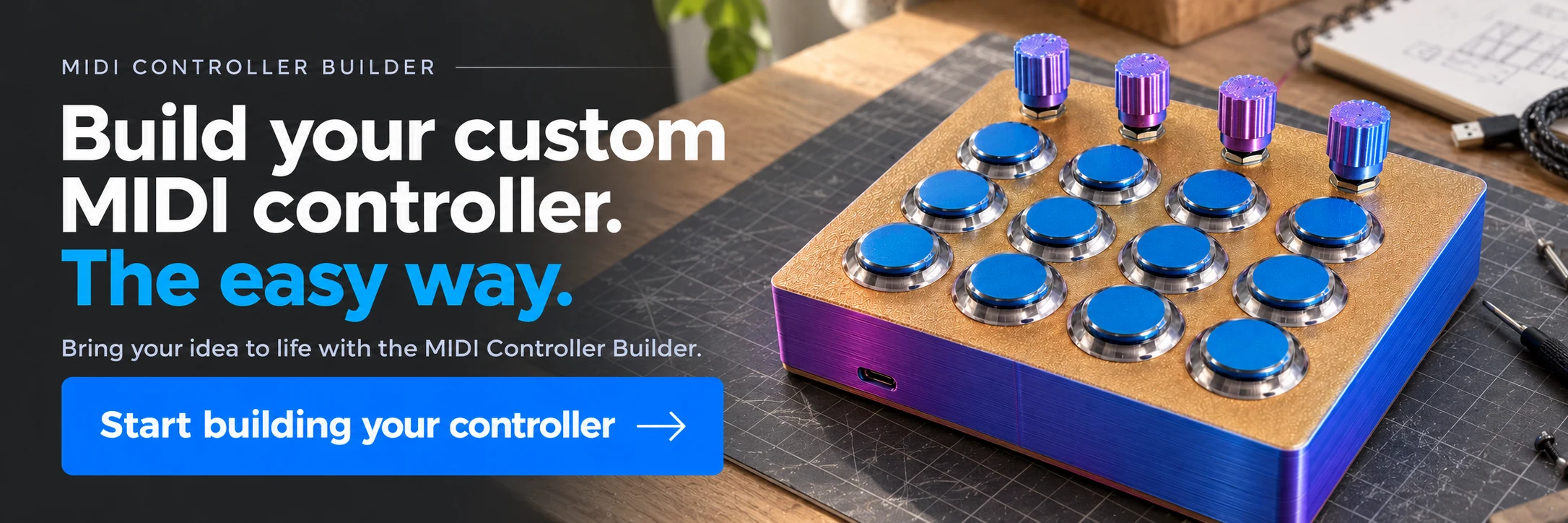
LIVE: Build Your Custom MIDI Controller in 2026 — From Idea to PCB, Firmware & Enclosure
An English livestream walkthrough of MIDI controller layout, 32 potentiometers with multiplexers, LED strips, motorized faders, KiCad PCB and enclosure design.
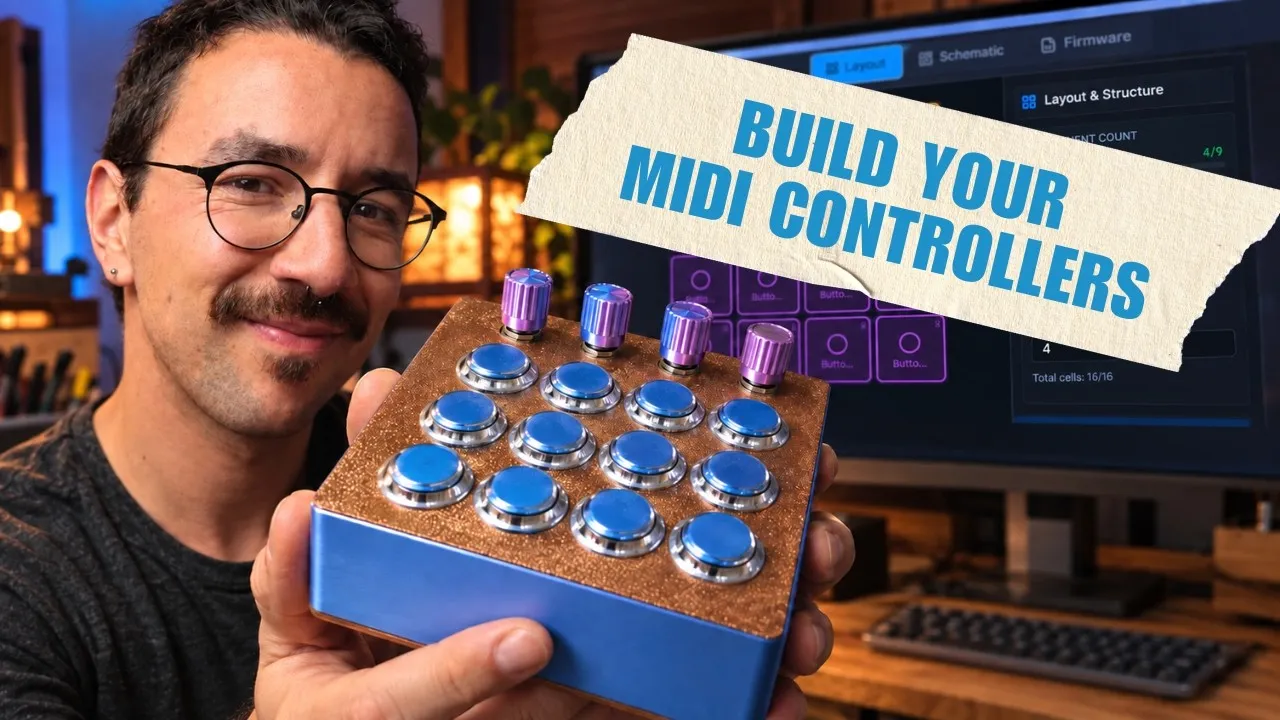
A full build workflow, from layout to fabrication files
In this English livestream, Gustavo Silveira walks through MIDI Controller Builder as an integrated design system: controls and MIDI behavior, board expansion, firmware, enclosure, LED feedback, PCB and panel in KiCad. The focus is the path from breadboard prototype to an assembled instrument. A musician and composer, Silveira began building physical controllers for his own electronic music workflow. He shows examples for DJing, samples and drums, motion and light, guitar effects, and a synthesizer surface modeled on the Minimoog; the fabrication walkthrough focuses on the latter.
Put controls in the layout and assign messages
A new project starts with a grid. Users can resize the grid, drag controls into place, select a range of cells and fill it with the same component. The live demonstrates four potentiometers and twelve buttons as an example, then builds a 32 potentiometer test layout by selecting an eight by four area and filling it in one operation. Repeated controls are faster to place in groups, while individual components can still be moved or configured afterward.
Each control has editable properties. A button can send a MIDI note or Control Change on a chosen channel; its behavior can be momentary, active while pressed and released on key up, or toggle between states on successive presses. The app can also set a button to send Mackie Control messages. A potentiometer can send Control Change, use an inverted range, or transmit pitch bend. The point of setting these choices in the layout is that the firmware is generated from the project: to change a message, update the control and export the code again rather than editing scattered constants by hand.
The project screen reports how many inputs the selected board supports and how many are assigned. Silveira demonstrates the Arduino Pro Micro as a compact controller board, while mentioning boards such as the Teensy and RP2040 as alternatives with different pin counts or capabilities. In this example, the Pro Micro has sixteen available inputs in the app’s budget. The display counts digital and analog uses together because some Pro Micro pins can serve either role, while others are digital only. It can support up to nine potentiometers or sixteen buttons in the described configuration, but the combined layout must remain within the total available pins.
Expand a Pro Micro with multiplexers
The 32 potentiometer example exceeds the Pro Micro’s direct input budget. The Builder flags the error, then the presenter adds two expansion modules based on the CD4067 multiplexer. A multiplexer uses one microcontroller input to select among sixteen signals, allowing a larger control surface without moving to a board with more direct pins. After adding two modules, the app reports that enough inputs are available and assigns the controls to the board or expansion channels.
The app distinguishes expansions for analog controls, buttons and encoders. Rotary encoders are not wired like potentiometers: they report rotation through their own signal pattern, so their expansion path is configured separately. Follow the generated schematic for the exact board and modules selected.
The example matters to musicians because a 32 knob surface can mirror a synthesizer’s software panel. The main project in this session is a controller modeled on the Minimoog interface and Arturia’s Mini V plugin. Silveira places controls in positions chosen to resemble the on-screen synth, including controls between the layout grid’s usual cell centers. Two multiplexers give the Pro Micro enough inputs for the larger control set. The goal is tactile access to synthesis parameters, so a musician can reach for a physical knob instead of navigating the screen.
Read the schematic and generate firmware
The schematic view turns the control layout into wiring instructions. It shows each button, potentiometer, encoder or multiplexer and identifies the corresponding microcontroller pin or expansion channel. The app also provides per-component explanations, a parts list and written wiring guidance. Silveira demonstrates that the user can open the board diagram to identify analog and digital pins, then consult the expansion module diagram to see how its additional inputs connect.
Firmware is generated for the selected board. The demonstrated workflow is to install the Arduino IDE and the libraries listed in the app, copy the generated code, select the appropriate board and USB port, then upload. The project settings carry the control messages, channels and pin assignments into the code. If a control’s note or CC number changes, the editor can regenerate the firmware from those settings.
The live also talks about troubleshooting because a generated design still has to be assembled correctly. Silveira recommends checking connections and solder joints when a control does not respond. A multimeter in continuity mode can beep when two points are electrically connected; if a connection that should conduct does not, the builder can trace the path and redo the solder joint. This is a practical way to find an open connection rather than assuming the software configuration is at fault. He frames debugging as a normal part of building hardware, especially when working with a breadboard or a first assembly.
Configure LED strips and MIDI feedback
The feedback tab in the demonstrated app supports addressable LED strips. The user selects the pin and LED count, adjusts brightness and defines what the strip should show. One example turns an RGB LED green when MIDI note 60 arrives on channel 1 and turns it off when that note ends. The presenter also mentions note 36 as a common kick drum note, which could trigger a red LED. These examples connect a MIDI event to a visible state, useful for drum pads or a controller that needs to show activity.
Segments divide one strip into groups. In the live, a 16 LED strip can be split into a 10 LED section and another section over the remaining positions. One segment can behave like a bar whose length follows a Control Change value; another can move a dot in response to a different CC. The user chooses the MIDI channel and controller number, so a potentiometer that sends CC 1 can control one segment while CC 2 controls another. The interface also shows a gradient between colors and a VU meter style animation.
The live distinguishes strip feedback from individual LED placement. Individual LEDs are not yet available as layout components in the demonstrated version. Silveira wants to connect LED strips and encoder rings to the PCB generation workflow, and discusses individual LEDs as a future addition. He also responds to a question about OLED displays: although he has used them in other projects and sees potential for labeling motorized faders or encoders, display support is a future idea, not a demonstrated feature of this build. Offline access is also discussed as a future request, not a capability confirmed in this session.
Motorized faders: driver, touch sensing and power
A Q&A exchange goes beyond the main Minimoog example to show how the app handles a motorized fader. Silveira says this component had been implemented and tested in the app, though he had not yet made a full build tutorial for it. A motorized fader combines two devices: a regular fader, which acts as a potentiometer, and a DC motor that moves the fader shaft. The layout therefore needs both the fader’s three signal connections and the motor driver connections.
The motor requires an H bridge so the circuit can reverse polarity and move it in either direction. The app offers driver choices, including an L293D, and lets the user assign the driver input pins. A PWM output controls motor speed. The system compares the target position with the fader’s potentiometer reading, moves toward the target, slows as it approaches, and stops when the reading reaches the expected value. If the DAW moves a channel control, the motor can move the fader to follow; the touch sensor lets a person grab the shaft and stop the motor while moving it manually.
That touch input is capacitive. Silveira describes a sensor built with resistors and says a capacitor or capacitive sensor is needed so the control can detect the user’s touch. He notes that a full tutorial for wiring it had not yet been made. Motor power also needs a separate supply sized for the current draw and number of motors; the app does not make that physical requirement disappear. These details are part of the Q&A explanation, not a complete motorized fader assembly guide. The session distinguishes the app’s tested component support from a fully documented project that the viewer could reproduce from this livestream alone.
Design the enclosure and check printed parts
The enclosure generator supports 3D printed cases and two-dimensional panels for laser cutting or CNC. The live shows a two-part case and explains when a panel-and-bottom design is convenient for wiring, while a PCB project may use a top panel, board and base separated by spacers. Users can adjust panel thickness, wall thickness and height, component cutouts, spacing, edge clearance, corner radius and mounting points. A 3 mm panel and wall thickness is used as a practical starting point in the example, not a universal requirement.
The user can toggle component models on to check whether controls, a microcontroller or standoffs collide. The app can export top and bottom STL files and even knob files. The presenter warns that exported meshes may need repair before printing and demonstrates uploading them to a repair tool, then downloading fixed files. The printed case can be sent to a slicer, but its size must fit the printer bed. The Minimoog surface in the main example is too large for the printer shown, which motivates the PCB sandwich approach instead of a single printed enclosure.
Panel graphics, PCB layout and KiCad routing
The Minimoog inspired project shows how the layout, PCB and artwork stay connected. Panel Designer adds component labels, scale marks and text beside controls. Silveira copies the visual logic of the software synthesizer panel, including labels such as “Glide,” numeric markings and tick marks around controls. The user can choose how many ticks to show, change their size and spacing, label the ticks, hide some marks or add text. He also demonstrates a waveform graphic option.
A panel can be exported as an SVG for printing, engraving or laser cutting, or as part of the PCB design. The app exports a KiCad project with a schematic and component placement. The schematic contains the electrical connections; the PCB view begins with components placed according to the layout. The user still needs to route copper traces, which serve as the board’s wiring. Silveira opens KiCad and demonstrates a free routing plugin that creates most of the traces from the design rules. He notes that automatic routing may not finish every connection and that the board still needs inspection and correction before manufacture.
The three board layers in the example have different jobs. The electronics PCB carries the controls and multiplexers. The top panel has openings for controls and carries the printed labels or graphics. The base has mounting holes and can carry artwork on its copper layers. Standoffs separate the panel, main PCB and base into a sandwich. That construction avoids printing one oversized case and lets the control surface itself provide the top structure.
The artwork can also be extended inside KiCad. The live shows text and a logo on different board layers, including exposed copper or silkscreen, which produce different visual finishes. Gerber production files are generated after the PCB is reviewed and prepared in KiCad; the app’s export is a starting project, while routing, layer choices and final manufacturing checks remain part of board design.
Keep design changes synchronized
A key advantage of the Builder is that moving a control in the layout updates its position in the enclosure, PCB and panel design. The live demonstrates shifting a potentiometer and then checking its new position across those views. Mounting holes can also be added to the PCB, with matching support points in the enclosure. This coordination helps catch conflicts before exporting or ordering hardware. Once a board has been manufactured, however, changing a control position means revising the design and making a new board revision.
The live distinguishes supported choices from future work: it shows the Pro Micro, Pico/RP2040, Teensy and multiplexers, while ESP32-S3 support is described as planned. Addressable LED strips and the motorized fader component are demonstrated; individual LEDs, OLED displays and offline access remain requests or future ideas. The Minimoog inspired PCB and panel are the main build, with Q&A extending the workflow into input expansion, debugging, feedback and motorized fader control.