LIVE: Construa seu controlador MIDI em 2026 — Da ideia à PCB, ao firmware e ao gabinete
A Portuguese livestream walkthrough of MIDI controller design, from board inputs and multiplexers to firmware, LED feedback, KiCad PCB, panel graphics and enclosure.
From the idea to a controller ready for the stage
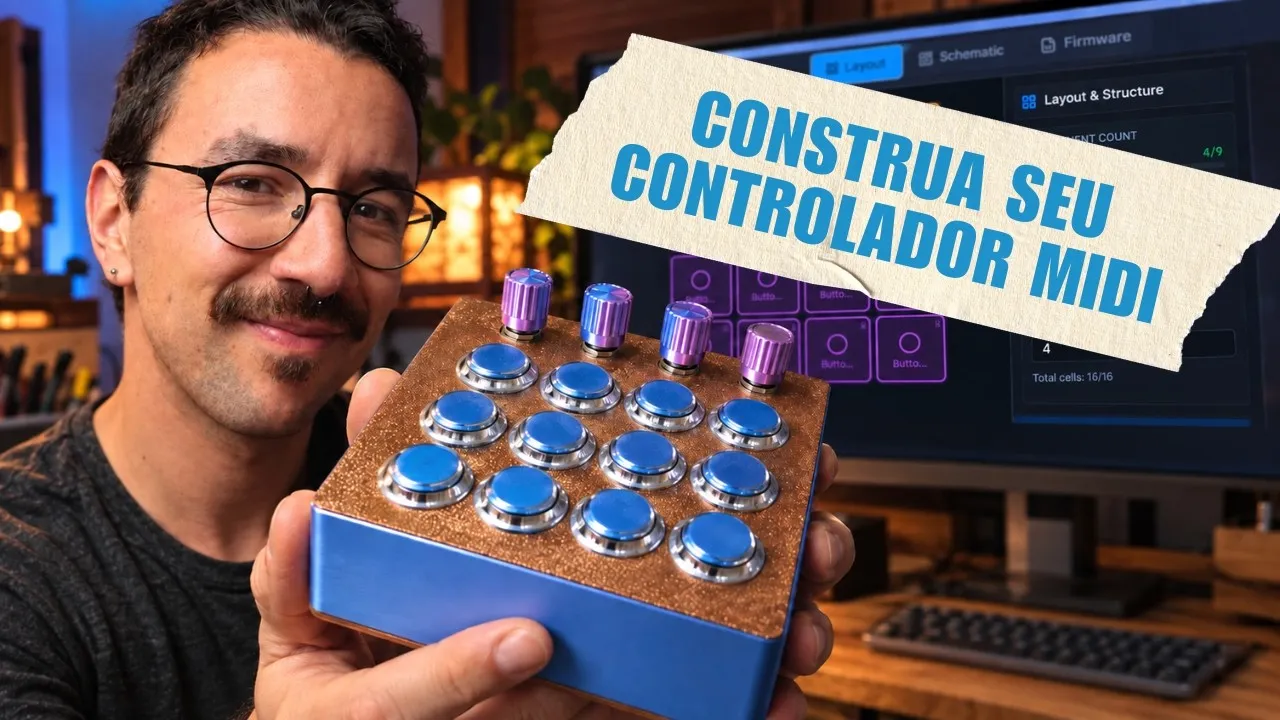
In this Portuguese livestream, Gustavo Silveira presents the MIDI Controller Builder workflow from start to finish: layout, MIDI messages, board inputs and expansion, firmware, enclosure, panel and PCB. The demonstration moves from the prototype stage toward a finished instrument. A musician and composer, Silveira began building physical controllers to play electronic music without relying only on generic surfaces. A microcontroller reads buttons, potentiometers, encoders and sensors, runs its program and exchanges MIDI messages with software or synthesizers.
The opening examples include a DJ controller with jog wheels, a sample and drum surface, and a gestural instrument with an accelerometer and light sensor. The variety highlights the main design decision: choose controls to fit the intended musical task. The fabrication walkthrough then centers on a synthesizer controller inspired by the Minimoog.
Plan the interaction before choosing the board
A new project begins in a grid. The user can resize it and place controls in cells. To repeat components, a selection range can be filled with buttons or potentiometers at once. This is faster than placing every repeated component individually and makes it easy to adjust the layout before building a case.
Each component can be configured with its MIDI behavior. A button can send a note or Control Change, use a chosen MIDI channel and number, and work as momentary or toggle. Potentiometers can send continuous values. The Builder assigns pins automatically, while also letting the user change a pin when needed. The project view reports how many inputs are occupied and whether the chosen board has enough capacity.
The demo distinguishes board choices available in the app from those still planned. The Pro Micro is shown as a compact board for final builds; the Leonardo is mentioned as convenient for prototyping because of its size and headers. The session also mentions the Teensy and RP2040 as supported options at that time. The ESP32-S3, with USB, Bluetooth and many pins, is discussed as a future addition, not as a board already selectable in the demonstrated workflow.
The MIDI settings remain connected to the layout. If a button should send a different note or a Control Change instead, the user can change the component settings and regenerate the firmware. The same project records the board selection and pin use, so the schematic and code stay aligned with the control design.
Expand the Pro Micro with multiplexers
The live shows what happens when a layout exceeds the Pro Micro’s available inputs. Some pins can be assigned to either digital buttons or analog potentiometers, while others are digital only. The project view counts these uses and signals when the combination no longer fits.
The demonstrated solution is to add expansion boards based on the CD4067 multiplexer. A multiplexer selects among sixteen signals using one microcontroller input, expanding the number of controls that can be connected. The Builder assigns the new channels and updates its capacity indicator. It provides separate expansion paths for potentiometers and buttons, and another configuration for rotary encoders because encoders are read differently from a simple on/off switch or an analog potentiometer.
To make the expansion concrete, Silveira creates a layout with 32 potentiometers. A Pro Micro alone does not have enough inputs; after adding two multiplexer boards, the app shows sufficient capacity. This is the project-scale example for the Minimoog inspired surface, not a claim that every board and arbitrary component combination will work without checking the electrical limits. The project must use the proper board and module, and the generated schematic remains the wiring reference.
The live also introduces the component documentation built into the app. Clicking a button, potentiometer, Arduino board or multiplexer opens diagrams and explanations. The schematic names the pins and expansion channels; a parts list and written wiring guide support the build. This documentation carries the design from the screen toward a physical assembly. Soldering may still be required even though the software generates the code and diagrams.
Set up LED strips for visual feedback
The feedback tab shown in the session configures addressable LED strips. The user selects the data pin, number of LEDs and brightness, then defines what MIDI information should change their state. One example turns an RGB LED green when note 60 arrives on channel 1 and switches it off when the note ends. Note 36, often used for kick drum, is mentioned as another possible event that could trigger red. This creates a link between a MIDI event and a visible response on a pad or control surface.
A strip can be divided into segments, or groups of LEDs. In the demonstration, a 16 LED strip can have a section of ten LEDs and another section assigned to a different behavior. A segment can form a bar that grows with a Control Change value; another can move a dot along the strip. The user chooses the MIDI channel and CC number, so one potentiometer sending CC 1 can control one segment while CC 2 controls another. The interface also includes color gradients and a VU meter style option.
The distinction between LED strips and individual LEDs is important. The shown feedback editor supports strips, but does not yet place individual LEDs in the layout as components. Silveira discusses integrating strips and encoder rings directly with PCB generation in future work. OLED or LCD displays also come up in Q&A as a desired addition, not a capability demonstrated in this build. The session therefore shows what was configurable in the live version and names some requests as future possibilities.
Read the schematic and generate firmware
After controls and expansions are set, the schematic translates the layout into physical connections. It shows the buttons, potentiometers and multiplexers with their microcontroller pins or expansion channels. Users can inspect the board diagram to distinguish analog and digital inputs and open the multiplexer wiring information. This gives the builder a reference before soldering or connecting wires.
The firmware tab generates code for the selected board. The workflow shown is to install the Arduino IDE and the libraries named in the app, copy the generated code, select the correct board and USB port, then upload. The chosen messages, channels and pin assignments flow from the layout into the code. To change a component’s MIDI message, update its settings and generate the code again rather than manually editing scattered values.
The session is a software and design walkthrough, not a complete breadboard build. Its aim is to show how the component plan, wiring reference and generated firmware fit together. Once the hardware is assembled, the builder still needs to test each input and resolve any wiring or soldering issue before relying on the controller.
Design a 3D case or a 2D panel
The enclosure generator can create a 3D printable case or a 2D panel for laser cutting or CNC. Users can adjust panel and wall thickness, case height, corner radius, hole sizes, spacing and distance from the panel edge. Arcade buttons can use circular cutouts at the selected diameter, while custom controls can use square or rectangular openings with rounded corners.
The preview can show component models so the user can check how the controls, board and supports fit. The app provides upper and lower enclosure parts, mounting points and options suited to different assembly styles. A panel-and-bottom case can accommodate a wired project; a PCB can instead be fastened to a panel with spacers. The live uses 3 mm as a practical starting value for panel and wall thickness, not a universal requirement. The design can be exported to STL for 3D printing or to 2D files for cutting; knob models can also be exported for printing.
STL files may need repair before printing. The demonstration includes uploading the generated parts to a repair tool and downloading corrected meshes. The size of the printer bed is another practical constraint. The Minimoog inspired surface is too large for the printer shown, so the presenter plans a board sandwich rather than one large printed enclosure.
Build the Minimoog inspired PCB and panel
The longest fabrication example is a controller called “Mid Mood” during the live, inspired by the Minimoog and the Arturia Mini V plugin. Its many potentiometers and switches are arranged to resemble the synthesizer interface, including controls placed between the grid’s usual cell centers. Two multiplexers expand the Pro Micro’s inputs. The musical purpose is tactile access to synthesis parameters, so the player can reach for a physical control instead of navigating the screen.
The PCB generator lets the user select footprints for potentiometers, buttons, encoders and expansion modules. A footprint specifies the shape and pad positions needed to solder a component. The demonstration compares options such as breakout boards that are easier to solder and small SMD components that can be assembled by a manufacturer. Components are placed based on the existing layout, and the project can then be opened in KiCad, an external electronics design program.
The app exports a KiCad project with a schematic and initial component placement. The schematic contains the electrical connections; the PCB begins with components in positions that match the layout. Copper routing still needs to be completed. Traces are the copper paths that connect the pads and replace separate wires. Silveira demonstrates a free autorouting plugin that creates much of the routing from the project’s rules, but notes that the result may need corrections and review before manufacturing.
The three boards in the example have distinct roles. The electronics PCB carries the components and multiplexers. The top panel has control openings and graphics. The base provides mounting holes and can carry artwork on its copper layers. Spacers separate the base, main board and panel into a sandwich. This avoids printing one oversized enclosure and lets the control surface itself form the top of the instrument.
Panel Designer adds scale marks, text and labels beside controls. Silveira reproduces visual elements from the synthesizer panel, including “Glide,” numeric labels and ticks around potentiometers. The user can set how many ticks appear, change their size and spacing, label them, hide selected marks or add other text. A waveform graphic is another available decoration. Panel artwork can be exported as SVG for printing, engraving or cutting, or used as part of the PCB design.
The live also shows adding text and a logo in KiCad layers such as silkscreen or exposed copper; the layer chosen changes the final appearance. After reviewing and routing the board in KiCad, Gerber manufacturing files can be prepared. The exported app project is a starting point: routing, layer choices and final board checks still matter before a fabrication order.
Keep layout, PCB and enclosure synchronized
The Builder links the views. Silveira moves a potentiometer in the layout and checks that its position updates in the PCB and panel designer. Related mounting points in the enclosure can also be added to match the board. This reduces inconsistencies between files and helps expose conflicts before export. Once a board has been manufactured, moving a component requires a new design revision and a newly fabricated board.
Questions in the live clarify some boundaries. For an organ pedalboard, a pedal that behaves as an on/off switch can be treated as a button, with multiplexers available to expand inputs. The internal mechanics of the organ are not demonstrated, and a matrix wiring option is described as a feature the presenter would like to add. A discussion of rectangular buttons and silicone pads distinguishes off-the-shelf mechanical keys from custom silicone pads that need a dedicated PCB and production tooling. The app can adjust cutouts, but it does not automatically create a proprietary key mechanism.
The Portuguese session centers on the Minimoog inspired design, with special attention to the integrated PCB, graphics and sandwich enclosure. It also shows how expansion boards, LED strips and generated firmware connect the control idea to a buildable set of files. Board support and interface details are those demonstrated in the recording; the ESP32-S3, individual LEDs, displays and matrix input are discussed as future work or requests.