I Built a MIDI Controller With Sensors (Using My App)
Build a sensor MIDI controller with an LDR and accelerometer: calibrate light and motion, then map a hand sweep to a filter and tilt to an air scratch.
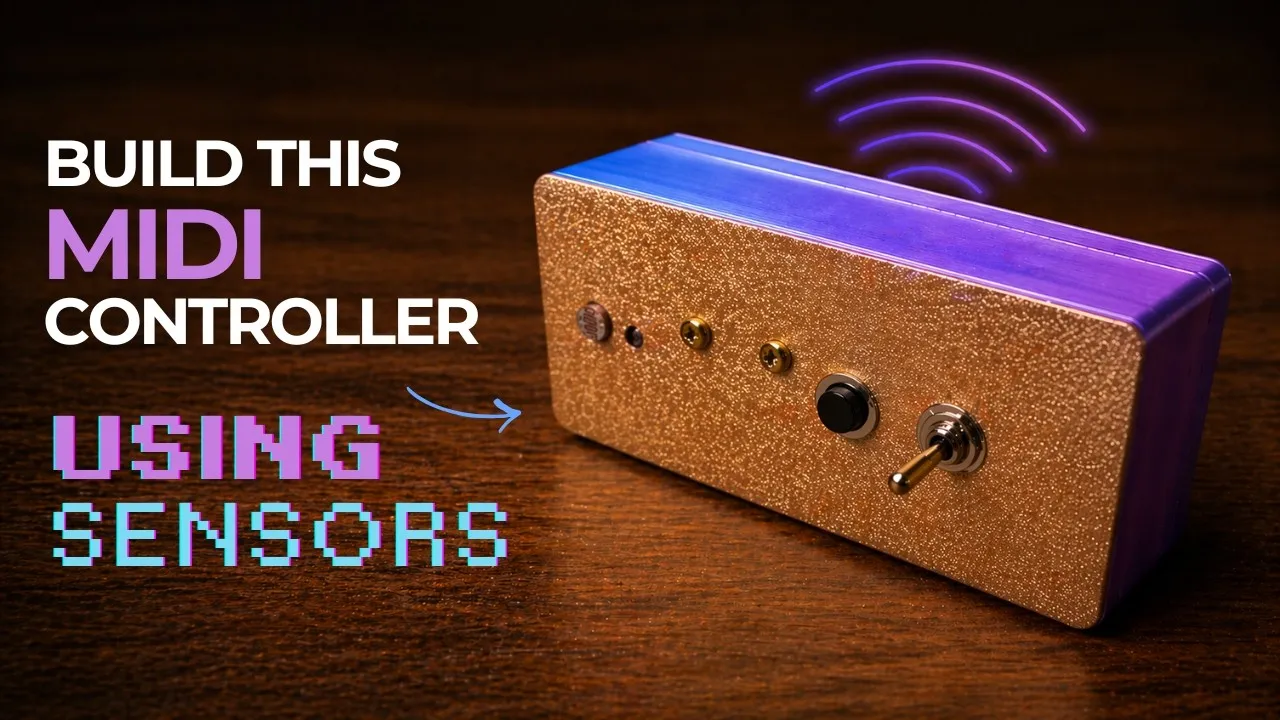
An LDR and an accelerometer make two very different musical gestures possible: a hand changes the light reading, while a wrist movement tilts the controller through the air. In this build, those inputs become filter control and an air-scratch gesture in DJ software. The project is designed in the MIDI Controller Builder, which supplies a layout, schematic, firmware, and enclosure files.
Choose the two sensor gestures
The light sensor is an LDR, or light-dependent resistor. Its resistance changes with illumination, so a flashlight or a hand passing over it can create a changing value. The build uses that value to send MIDI Control Change messages. The second sensor is an accelerometer, which reads the controller’s orientation and movement. The creator considers multiple axes but keeps one axis enabled in the final setup: more motion data would be more than needed for the intended gesture.
These inputs need management. Ambient light can fluctuate even when the player is not intentionally touching the LDR, and the accelerometer needs a neutral position. The design therefore includes an enable switch and a calibration button. In the component settings, the enable switch is linked to the LDR so the light sensor can be silenced when it is not being used. The accelerometer remains available; the presenter simply avoids moving the controller when that gesture is not wanted.
Set up calibration and response
The calibration button establishes the accelerometer’s zero position and captures the LDR’s minimum and maximum light readings. This is important because the room’s illumination and the controller’s starting tilt vary from one setup to another. Place the controller in the intended neutral position, set the light conditions you plan to play with, and trigger calibration so the range matches the environment.
The Builder exposes the LDR’s raw minimum and maximum values, along with smoothing and threshold settings. Smoothing makes readings less jumpy; a larger threshold requires a more substantial change before a new message is sent. The accelerometer settings include sensitivity and dead zone, which determine how much movement is needed before the control responds. The tutorial adjusts these after assembly and testing rather than presenting universal values. Start with the sensor readings, then change one setting at a time while watching the result.
The walkthrough also configures the MIDI message for each input. It assigns a Control Change to the light reading and selects which motion axis to use. The app’s generated schematic identifies the component connections, so use that diagram for the actual board rather than guessing at pins. The video does not identify a different sensor model or provide a reason to substitute another one; the demonstrated components are an LDR and an accelerometer.
Build and check the enclosure
The layout is arranged in the Builder before exporting the enclosure. The tutorial places the LDR near the USB opening, then checks the top and bottom views. In the first layout, the Arduino mounting area overlaps the enclosure standoffs. Increasing the component edge clearance moves the parts far enough apart to remove that collision. This is a useful fit check: inspect the board mount, standoffs, sensor openings, and USB port in both enclosure views before printing.
The case is 3D printed as separate top and bottom pieces. After export, the creator notes that the STL meshes may need repair and runs the files through a mesh-repair tool before opening them in the slicer. Treat this as a file-preparation step, then inspect the sliced parts for openings and mount alignment. The video demonstrates the specific enclosure and Pro Micro mount; dimensions should be checked against the components in your own layout.
Upload firmware in two stages
The hardware uses an Arduino Pro Micro. Install Arduino IDE and the libraries identified by the Builder’s instructions, then copy the generated code into a sketch. The tutorial selects the Arduino Leonardo board option because it uses the same chip family as the Pro Micro, and then selects the board’s USB port. Confirm the board and port against your own setup before uploading.
First upload the debug version. The serial monitor lets you see whether the LDR and accelerometer readings change as expected. If calibration or sensor response is off, adjust the component settings and repeat the check before switching modes. Once the readings are usable, generate or select the MIDI class-compliant firmware, upload it, and confirm the messages in a MIDI monitor. This debug-first sequence separates sensor and wiring problems from mapping problems in the music software.
Map the gestures without flooding the MIDI input
In the demonstrated Traktor setup, the accelerometer controls jog movement for an air scratch, while the LDR controls a filter effect. The LDR’s enable switch is especially useful while mapping: keep the sensor disabled as you move the controller and learn the accelerometer assignment, so room-light changes do not accidentally get learned as the same MIDI control. Then enable the LDR, hold the controller still, and move a hand or flashlight over the sensor while the software learns the filter assignment.
The calibration control sets the sensor’s baseline and light range, while the enable switch prevents unwanted LDR messages between gestures. This division of labor helps avoid a stream of ambient-light changes interfering with the motion mapping. Your DJ software and MIDI assignments may differ, so verify the incoming Control Change and axis values in a MIDI monitor before using them in a performance.
This build shows how a sensor MIDI controller can turn light and movement into playable controls while keeping their input behavior adjustable.