Make a Raspberry Pi Pico MIDI Fidget Spinner
Build a Raspberry Pi Pico MIDI controller with an LDR and fidget spinner: Arduino IDE setup, TinyUSB MIDI, 3.3 V wiring, calibration and musical mapping.
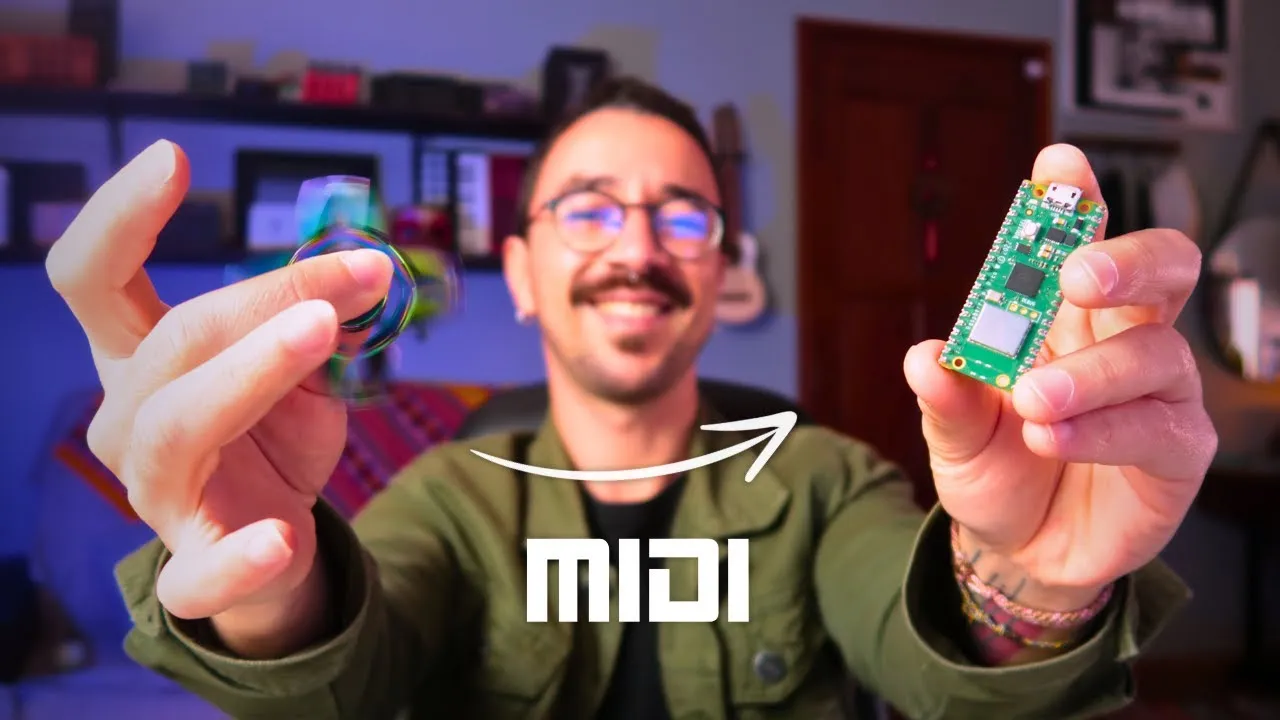
A fidget spinner can become a modulation source. Put a light sensor underneath it, spin it under a light, and its moving shadows produce a changing signal. In this project, a Raspberry Pi Pico W turns that signal into MIDI values so the motion can control a parameter in music software.
The result is a Raspberry Pi Pico MIDI controller with a physical rhythm of its own. Different spinner shapes interrupt the light differently, and the speed changes as the spinner slows down. Instead of drawing a perfectly regular LFO, you are playing with the motion of a real object.
Elecrow supplied the Pico Advanced Kit used in the demonstration. The build uses its Pico W and basic components, rather than requiring the kit’s entire collection of sensors.
Why use a Pico for a MIDI controller?
The Pico W is a microcontroller board built around the RP2040. It is different from a Raspberry Pi computer running Linux: you upload firmware that reads the sensor and sends MIDI. The W version has Wi-Fi, although this project communicates over USB.
A Pro Micro remains a useful choice for many Arduino MIDI projects, with a well-established community and enough processing power for common controls. The Pico offers more processing headroom, and it can be programmed through Arduino IDE as well as through other environments. Its limited number of analog inputs matters if you plan to expand this experiment into a large panel of knobs.
The useful comparison is the whole project: inputs, software support and connection method. You do not need to choose the fastest board to read one light sensor.
Set up the Pico W in Arduino IDE
The demonstration uses the Arduino-Pico board package maintained by Earle F. Philhower. Add its board-manager URL in Arduino IDE’s settings, install the package through Boards Manager and select the Pico W board used in the build. Use the package’s installation instructions for the URL and current menu names.
For the initial upload, connect the board while holding its boot button so the USB bootloader/UF2 target appears. The ordinary serial port and the bootloader target serve different purposes. Upload Blink first and confirm that the onboard LED responds. That separates basic board setup from the MIDI experiment: if Blink fails, solve the board or upload configuration before adding a sensor and more libraries.
The recording also demonstrates a button-and-upload sequence for subsequent uploads. Bootloader behaviour can depend on the installed core and the firmware already on the board; follow the documented procedure for that combination.
Install the MIDI library and test USB messages first
During development, I found that my original combination of libraries produced invalid messages for some of the MIDI messages I wanted to send. I adapted the TinyUSB code into Adafruit_TinyUSB_MIDI. The repository is the technical reference for the library used in this video.
Install that library and its Adafruit TinyUSB dependency. In Arduino IDE, select Adafruit TinyUSB as the USB Stack for the Pico board. That setting is part of the demonstrated MIDI configuration; selecting the correct board without the matching USB stack is not the complete setup.
Start with the library’s MIDI Write example. It demonstrates Note On/Off, Control Change, Program Change, pitch bend and pressure messages. Its companion MIDI Read example covers receiving messages. The example initialises the MIDI object and calls begin() before using its message methods.
Upload the write example and open a MIDI monitor. Confirm that the Pico appears as an input and that messages arrive with recognisable types, channels and values. This first check deliberately uses generated messages: it proves the USB MIDI path before sensor readings are involved.
Wire the LDR as a voltage divider
The light-dependent resistor changes resistance with light. The Pico reads a voltage, so the LDR is paired with a fixed resistor to form a voltage divider:
- Connect one LDR leg to the board’s 3.3 V supply used for the sensor.
- Connect the other LDR leg to ADC0, physical pin 31 on the Pico pinout shown.
- From that same ADC0/LDR junction, connect a 10 kΩ resistor to ground.
- Use the analog ground connection shown at physical pin 33.
Pin 31 is a physical connector position in this explanation, not an instruction to type the number 31 into every analog-read API. Match the sketch’s pin identifier to ADC0 on the selected board. The Pico sensor wiring is a 3.3 V circuit; do not transplant a 5 V Arduino wiring diagram into it.
The build also includes a calibration button. Its role is to tell the firmware when to measure the sensor’s working range. Check that button’s actual pin assignment in the sketch you use rather than treating its location as interchangeable with the analog input.
Smooth the reading and calibrate the MIDI range
Install ResponsiveAnalogRead for the sensor version. Light readings fluctuate, and smoothing helps avoid turning every small fluctuation into an audible parameter jump.
The mapping has two ranges. First comes the raw light range: the minimum and maximum sensor values encountered under the current light. Second comes the MIDI range, 0–127. The firmware maps the calibrated sensor interval into that MIDI interval.
Press the calibration button and move the object or your hand through the light conditions you will actually use. With the spinner, include the open and shadowed parts of its rotation. After calibration, changing the light should produce a useful spread of MIDI values instead of movement within a tiny portion of the range.
Calibrate again if you move the controller or change the light. The relationship is between the light, sensor and moving object; a calibration made in one position need not suit a different setup.
Map the spinner to a musical parameter
Open the MIDI monitor again after uploading the sensor firmware. This time, confirm that values change with light and stop behaving like the automatic test messages from MIDI Write. Then enable the Pico’s MIDI input in the music software and map its output to the parameter you want to control.
In the demonstration, I coordinate calibration with entering the mapping mode so a continuously changing sensor does not grab an unintended assignment. Select the destination parameter, complete the mapping and check the response before playing.
Spin the object over the sensor and listen to the result. Different numbers and shapes of openings create different shadow patterns. Slowing rotation changes the modulation rate naturally. The musical interest comes from that changing physical pattern, while USB MIDI gives it a connection to a software control.
Check the system in stages
If the result does not behave as expected, work backwards through the same stages: MIDI monitor for incoming messages, the sensor’s calibrated range, the LDR junction and ground, the selected USB stack, and the basic board upload. Keeping these checks separate makes a DIY MIDI controller easier to diagnose than changing the hardware and firmware at the same time.
This is also a useful starting point for other light-and-motion experiments. The central chain remains clear: a physical event changes a sensor voltage, firmware maps it into MIDI, and a receiving instrument turns that data into a musical change.