Build a DJ Controller with the MIDI Controller Builder App
Build a Pro Micro DJ MIDI controller with two encoders, five pots, five arcade buttons, a fitted enclosure, debug-first firmware, and Traktor mappings.
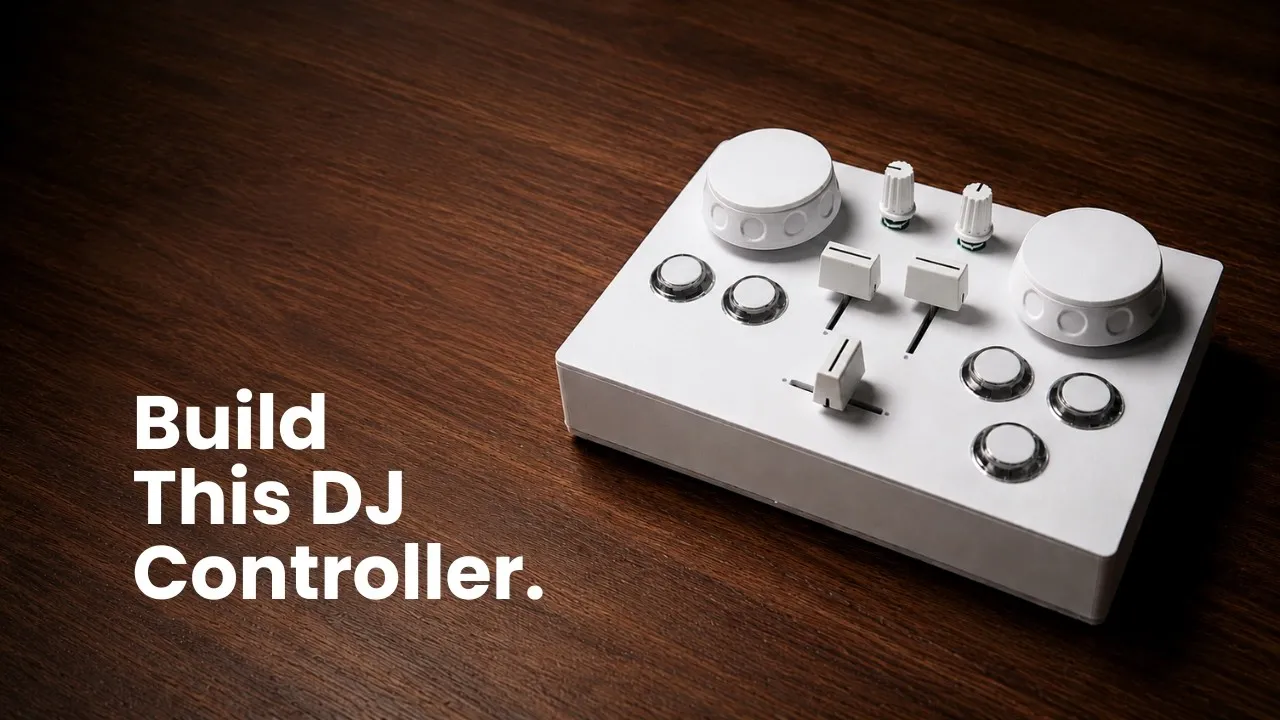
This project uses the MIDI Controller Builder to lay out a compact DJ surface around the 16 available pins of an Arduino Pro Micro. The demonstrated design combines two rotary encoders with push switches, five potentiometers (two rotary and three sliders), and five 24 mm arcade buttons. The video takes the design through wiring, enclosure export, firmware upload, MIDI checks, and a Traktor mapping.
Plan controls around the available pins
Start by choosing the actions the controller should cover. The demonstrated surface has two encoder knobs that can work like jog wheels, two rotary potentiometers for filter control, two vertical channel faders, and a horizontal crossfader. Five arcade buttons provide actions such as play, cue, loop, and a modifier. The encoder push switches and an extra button add further actions. The final MIDI assignment is a mapping choice, but the physical layout is designed to keep frequent DJ gestures within reach.
The Pro Micro has a limited set of inputs, so encoders need deliberate pin planning. A rotary encoder uses two signal pins, and at least one signal must use an interrupt-capable input. In the demonstrated Pro Micro pinout, pins 2, 3, and 7 are the available hardware-interrupt choices for encoder signals. The video also identifies pin-change interrupt options 8, 9, 10, 14, 15, and 16 for the other signal. Pins 0 and 1 are reserved for serial communication in this design and should not be assigned to controls. The example connects encoder A to D2, encoder B to D14, and the push switch to D3; use the generated schematic for the remaining component assignments.
Wire a shared ground and power rail
Buttons are simple switches in this build: one terminal connects to the assigned input and the other to ground. Potentiometers need three connections. The center wiper goes to its assigned analog input, while the two outer terminals connect to ground and VCC. The creator joins the grounds into a common ground and the potentiometer VCC connections into a common VCC rail. VCC is for the potentiometers here; the buttons and encoder switches do not need a VCC connection.
The app’s schematic and wiring guide show which pin belongs to each control. Follow those assignments rather than relying on a generic Pro Micro diagram, especially because input pin choices affect the encoder interrupts. Route wires so the board can sit in its mount and the enclosure can close without pressing on solder joints.
Choose components and fit the enclosure
In the Builder, place two encoders and enable their push switches, add the potentiometers and arcade buttons, then orient the middle fader horizontally for crossfader duty. The enclosure editor lets you set hole diameters, component spacing, and distance from the panel edge. The video uses 8 mm holes for the potentiometers and encoders and 24 mm holes for the arcade buttons. Confirm the actual hardware dimensions before exporting; nominal sizes vary by part.
A mechanical issue appears during assembly: the faders need mounting holes. The creator notes that the first slider choice lacks the needed mounting points and recommends selecting sliders with mounting holes. In the demonstrated panel, the faders are secured with glue, but that workaround is specific to the parts used. Plan mounting before cutting the panel so the sliders are supported and do not shift during performance.
The generated enclosure has top and bottom pieces. The video uses a 3D-printed case and repairs the exported STL meshes with an online mesh repair tool before slicing, since the generated files may need correction for printing. It also identifies a weakness in the case support: the side walls need additional support points so the bottom can be screwed to the top along the sides. The revised design target raises the enclosure to about 34 mm to provide enough room for components and mounting. Inspect the mount locations, control clearance, wall height, and screw support in the exported parts before printing.
Be careful with exposed copper wiring
To make the shared ground and VCC rails quickly, the build uses bare copper wire. That can simplify a common connection, but exposed ground and VCC conductors must not touch each other or other signal pins; contact can create a short circuit. Keep the rails separated, insulate where needed, and check for stray strands before powering the board. This is especially important when the electronics are pressed into a compact enclosure.
Upload and debug before switching to MIDI
Install Arduino IDE and the libraries named in the generated instructions: MIDIUSB and ResponsiveAnalogRead. The video also installs ArduinoUSBrename from its repository because it is not available through the IDE’s library manager in the demonstrated setup. Copy the generated sketch, choose the Arduino Leonardo board option for the Pro Micro, and select its USB port. Upload the debug firmware first.
Use the serial monitor to exercise each control. Encoder readings should change in both directions, and potentiometer values should move through their range. A fader installed upside down can produce an inverted range; select that component in the Builder and enable invert range to correct it. Test the buttons, both encoder rotation and push actions, and each potentiometer before closing the case. This catches wiring and orientation issues while the controls are still accessible.
When the debug readings look right, switch the generated firmware to MIDI class-compliant mode and upload again. Open a MIDI monitor and verify the messages from each control. The tutorial notes a directional encoder mode for Traktor: counterclockwise sends 0 and clockwise sends 127. That mode is used for the jog mapping in this example. An absolute mode instead sends a value across the 0–127 range. Choose based on what the receiving software expects, then verify the result before mapping in the DJ application.
Map the controller in Traktor
The demonstrated Traktor mapping uses the encoders for jog movement on the two decks. Arcade buttons handle play, cue, loop, and Shift; the potentiometers control filter and volume, and the horizontal slider crossfades between decks. The extra Shift control gives access to another layer of assignments without adding more panel space. These are the functions shown in the walkthrough, not a fixed assignment for every DJ setup.
A reliable order is to confirm each input in the MIDI monitor, then learn one control at a time in Traktor. For directional jog, keep the encoder in the directional 0/127 mode and check that clockwise and counterclockwise produce opposite movement. For a fader or knob, confirm the full range and invert it if necessary before assigning it to a parameter. Finally, test the layout in context: jog, load, play, cue, filter, channel level, and crossfade should respond without accidental triggers.
The Builder’s example gives you a starting point for a custom DJ MIDI controller, while the pinout, component mounting, and mappings still need to match your exact parts and software.