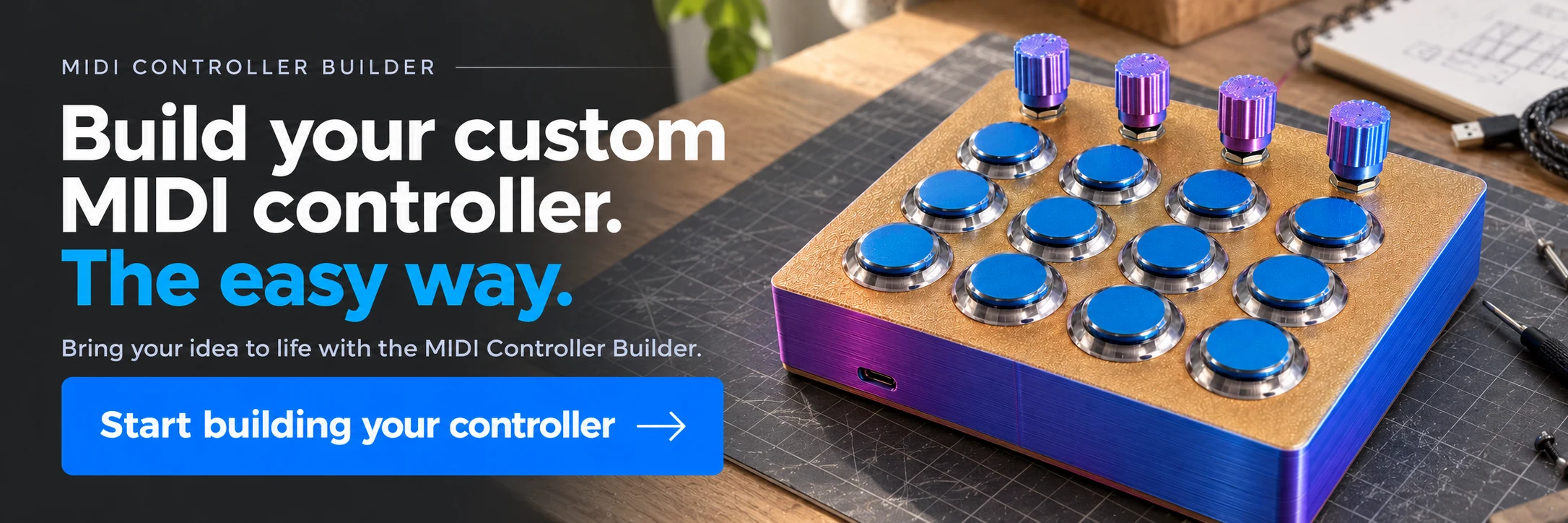
THE MIDI CONTROLLER BUILDER APP - Buttons and Potentiometers
Build an Arduino MIDI controller with four potentiometers and twelve buttons: layout, B10K wiring, enclosure dimensions, debug firmware and Ableton Live mapping.
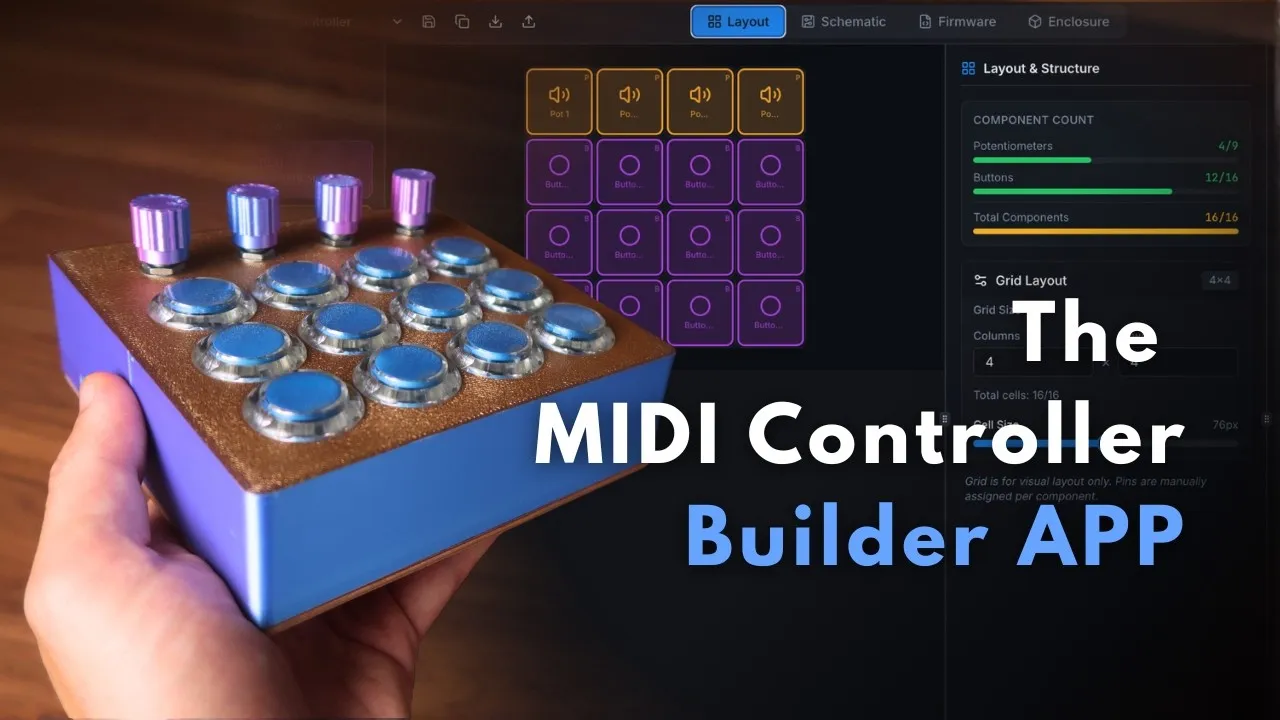
A DIY MIDI controller becomes useful when its controls match the way you play. In this walkthrough, I build a compact surface with four potentiometers and twelve momentary buttons, using the MIDI Controller Builder to connect the layout, wiring, firmware and enclosure design.
The project is an Arduino MIDI controller built around a USB-C Pro Micro. The specific enclosure mount shown fits that board format. The process below follows the version demonstrated in March 2026; check the current app’s generated instructions for your selected components and board.
1. Arrange the controls and define their MIDI messages
Start a project and place four potentiometers along the top of the grid, followed by the twelve buttons. The app tracks the available inputs and assigns board pins. In this example the four pots use A0–A3, while the buttons receive suitable digital inputs.
A potentiometer has an end-to-end position, making Control Change a natural choice for an effect amount, volume or another continuous parameter. Give the controls distinct CC numbers where they need independent mappings, and choose the intended MIDI channel.
Buttons can send notes or Control Change messages. Choose momentary behaviour when pressing and releasing should produce separate states, or toggle when one press should stay active until the next. A button used to play an instrument and a button used to enable an effect can share the same hardware while needing different message behaviour.
The recording also shows advanced analog settings such as sensitivity and range. Keep the initial configuration simple enough to test, then refine the response after confirming the circuit.
2. Read the generated schematic before soldering
The bill of materials identifies four B10K linear potentiometers, twelve momentary push buttons and the Pro Micro. “B10K” is part of the component choice in this build: the resistance and taper affect the analog control behaviour.
Each potentiometer has three connections:
- One outer terminal goes to ground.
- The other outer terminal goes to the board’s VCC supply, 5 V in this Pro Micro circuit.
- The centre terminal, or wiper, goes to its assigned analog input.
Each button connects between ground and its assigned digital input. It does not receive a VCC wire in this schematic. Follow the generated pin map rather than trying to wire every component from memory.
All components can share a common ground. Chain the ground connection from one component to the next and connect that chain to the board’s ground. Potentiometers can similarly share the VCC connection. That solves the apparent mismatch between many component ground terminals and only a few ground pins on the board.
3. Design around the actual button dimensions
An enclosure needs to account for the body outside a mounting hole as well as the hole itself. The example uses arcade buttons with a nominal 24 mm mounting hole, enlarged to approximately 24.2 mm in the design for fit. The outer button diameter is about 27 mm, so 28 mm centre spacing leaves a small gap between neighbouring buttons.
The potentiometer holes are set to 8 mm for the components shown. These are project dimensions, not universal dimensions for every pot or arcade switch. Measure the actual parts before cutting or printing.
The 2D panel route exports SVG files for laser cutting. The demonstration uses a 3 mm material setting and discusses 35 mm spacers to provide enough depth for the buttons. M3 spacer mounting holes are set around 3.2 mm in that design.
The 3D enclosure route uses the same control layout and dimensions, with separate settings for walls, panel and height. The demonstration settles on roughly 35 mm internal wall height for the selected buttons. Move the Pro Micro mount and USB opening so the connector and board do not collide with a button, standoff or the other half of the case.
Export the top and bottom, inspect the meshes and repair them if the slicer or mesh checker reports a problem. A screen preview of a case is not the same check as a printable, correctly fitting STL.
4. Solder the shared connections and signal wires
Remember that the underside is mirrored relative to the front-panel view. Lay out the wiring with that orientation in mind before choosing wire lengths.
I make the common ground chain first, then the individual button signal leads. For this enclosure, the leads going to the Arduino are approximately 20 cm long. Alternating colours helps identify which button goes to which input. Trim excess conductor and solder after inspecting each joint.
For the pots, solder the common ground and VCC chains on the outer terminals, then an individual signal wire to each wiper. Black for ground and red for VCC make later inspection easier. Keep the soldered joints compact enough to clear adjacent parts.
Connect the resulting wires to the Pro Micro according to the schematic. Test the circuit before closing the case. Once the wiring is verified, arrange the wires so the halves close without trapping them, fit the knobs and finish the mechanical assembly.
5. Use debug firmware to check the hardware
Install Arduino IDE and the MIDIUSB and ResponsiveAnalogRead libraries used by the generated firmware. In the Builder, choose the Debug target first, copy the code into Arduino IDE and select the appropriate board and port. The recording uses the Arduino Leonardo option for its ATmega32U4 Pro Micro setup.
After uploading, open the Serial Monitor. Press each button and check that the expected note or CC appears. In the demonstrated note configuration, pressing shows velocity 127 and releasing shows zero. Rotate every pot and confirm that its values travel through the expected MIDI range of 0–127.
If a control is missing, wrong or moving unexpectedly, compare that control’s pin assignment with its physical wiring and solder joints. Testing in debug mode lets you inspect the hardware response before also involving a DAW mapping.
Pay attention to channel displays: the serial/debug representation shown can use zero-based numbering, where a displayed zero corresponds to the user-facing MIDI channel 1. Verify the resulting message in a MIDI monitor instead of assuming every screen uses the same numbering convention.
6. Upload USB MIDI firmware and map it in Ableton Live
Once the controls behave correctly, switch the Builder’s target from Debug to Arduino Pro Micro, regenerate the firmware and upload it. Open a MIDI monitor and check that the board now sends actual MIDI messages.
In Ableton Live’s MIDI settings, the demonstration enables Track to play notes and Remote to map controls. The device may appear as Arduino Leonardo in this setup. Load an instrument to test the buttons, then enter MIDI mapping mode, select an effect parameter and move the pot you want to assign. The example maps knobs to reverb controls.
The important sequence is layout → schematic → enclosure → wiring → debug → MIDI → musical mapping. Each stage gives you something specific to verify. Following that chain makes an Arduino MIDI project manageable while still leaving you free to design the control surface around your own performance.