I Built a MIDI Controller for a Famous Brazilian Rapper (Using an Arduino)
A compact custom MIDI controller for Filipe Ret uses three arcade buttons and three potentiometers for live vocal control.
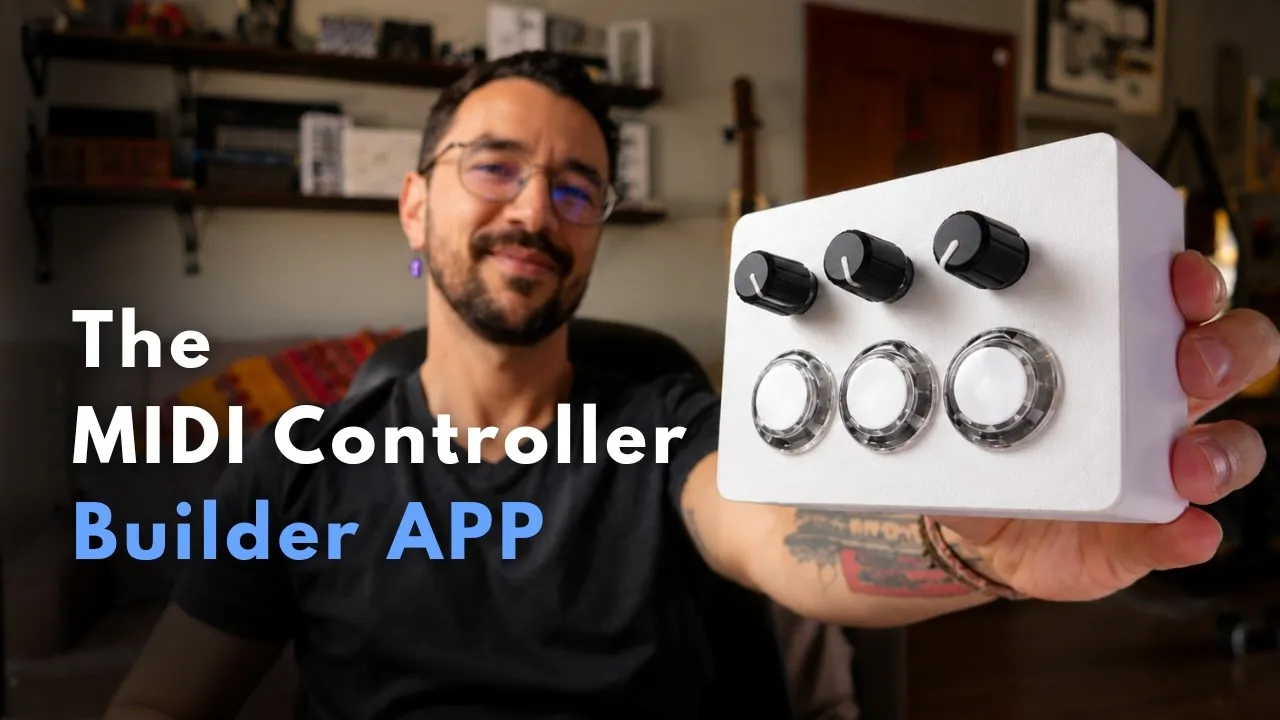
A live vocal rig does not always need a large surface covered in controls. This custom MIDI controller was designed for Brazilian rapper Filipe Ret to control Auto-Tune during performances. Its compact layout has three 24 mm arcade buttons and three potentiometers: six physical controls arranged around a specific stage task.
The build is useful as an example of how to translate a performer’s needs into hardware. The buttons provide discrete actions, while the potentiometers send values across a range. The video does not name the exact Auto-Tune parameters or describe what each button triggers, so those assignments should not be inferred. The controller sends MIDI; the receiving software or effect determines what each message does.
Lay out six controls before wiring
The design starts in MIDI Controller Builder. In the layout view, the grid can be resized to three columns and two rows. The demonstrated arrangement places three arcade buttons and three potentiometers in those cells. To place several identical controls at once, the presenter selects a range of cells and uses the fill-selection command. This is a small workflow detail, but it makes a repeated layout quicker to create and easier to adjust before any enclosure is printed.
The selected board is an Arduino Pro Micro. The presenter describes it as inexpensive, USB-C equipped and capable of appearing as a class-compliant MIDI device. The Builder displays the board’s input use and can flag when a project approaches its pin limits. Expansion boards are mentioned as an option for projects that need more controls, but this build uses the Pro Micro directly.
In the control settings, each button can be configured to send a MIDI note or Control Change, with a selected channel and number. The app can also configure a button as a computer-key command. The demonstrated button signals use digital pins D2, D3 and D4. The three potentiometer signals use analog inputs A0, A1 and A2. The video notes that the software initially assigns a different button pin because pin 4 can also serve as an analog input; it prioritizes pins that are exclusively digital before the builder changes the assignment to D4.
These are the connections shown for this project, not a universal Pro Micro pinout. Check the exact board revision and the generated schematic for the hardware in front of you. The app’s schematic view is the reference for which signal wire goes to which input.
Share power and ground, keep signal wires distinct
The schematic shows three connections for each potentiometer: ground, its analog signal and VCC. Each button connects to its own digital input and to the shared ground. VCC is shared by the potentiometers; the buttons do not receive a VCC connection in this circuit. The presenter points out that the repeated ground symbols can be joined into a common ground wire, then connected to a ground pin on the Arduino. The VCC connections can likewise share a supply rail and connect to the board’s VCC. The signal outputs remain separate: each potentiometer’s wiper goes to A0, A1 or A2, and each button signal goes to D2, D3 or D4.
The board diagram in the app can be opened for a closer look at its labels. The tutorial shows that several ground pins on the board are electrically the same common ground; the builder can use the convenient ground connection specified in the generated drawing. Following the schematic keeps the build understandable: shared power rails are routed together, while each control retains its own input line.
Size the enclosure around real parts
The enclosure view can generate a two-dimensional panel or a three-dimensional case. The presenter uses the 3D enclosure because he has a 3D printer. Before exporting, he selects the exact button size in the Builder. Arcade buttons are offered in 24 mm or 30 mm options; for this design, the 24 mm setting makes the component model match the hardware. The potentiometer hole defaults to 8 mm, which the presenter says is suitable for the part used here, though the setting can be changed.
The spacing value is measured center to center. With a 24 mm button selected, the Builder sets 28 mm as a starting spacing because the button’s outer body is wider than its mounting hole. The presenter also adjusts the distance from the controls to the panel edge. These dimensions are connected: the hole must fit the component, the centers need enough room for the button bodies, and the enclosure edge needs clearance around the controls.
The case includes a mount for the Arduino Pro Micro. The mount’s position has to be checked against both control components and the enclosure’s supports. The on-screen design shows the board colliding with a button and later with support geometry, so the presenter moves the board and adjusts the enclosure footprint until those parts have room. This is a practical reminder to inspect the generated 3D arrangement rather than assuming a board mount will fit automatically.
The USB connector also affects placement. The Pro Micro must be oriented so the USB-C port can be reached from the enclosure edge; the presenter chooses a wall position and moves the board to avoid collisions. The enclosure height is another fit check. With these buttons and space for the internal wires, he sets the wall height to 34 mm. He recommends 3 mm as a workable starting point for panel and wall thickness, while noting that thickness can be adjusted. Corner radius and mounting-hole options are additional settings, but the tutorial leaves the mount defaults in place and rounds the corners for appearance.
Export and prepare the STL files
Once the layout and fit look right, the Builder exports the full 3D enclosure as two STL parts. The app warns that the generated mesh may need repair before printing. The presenter opens the repair tool, uploads the exported files and downloads the repaired versions for the printer. This repair step is part of the demonstrated workflow; an STL export should not be assumed ready for every slicer without inspection.
The video then shows the physical assembly. Use the generated schematic to verify the wiring as you fit the controls and board. The 24 mm controls, 28 mm center spacing and 34 mm wall height are the values used in this build, not universal enclosure rules.
Test in debug mode before closing the case
The presenter explicitly recommends testing the electronics before closing the enclosure. His first assembly has a button that does not work because of a soldering problem; he redoes the connection. That makes the test step concrete: plug in the controller while the inside is still accessible and check every control. If one input fails, inspect that signal and its solder joint before sealing the case.
For firmware, MIDI Controller Builder can generate a debug version or a MIDI class-compliant version. The tutorial starts with debug mode. It installs the Arduino IDE and the libraries indicated by the app’s instructions, copies the generated code, selects Arduino Leonardo as the board and uploads it through the correct USB port. Although the hardware is a Pro Micro, the presenter explains that it appears as Leonardo in this environment because both use the same microcontroller.
In debug mode, the Arduino serial monitor displays the chosen control messages and analog values. The tutorial checks for the expected button note and a potentiometer value moving from 0 to 127. Seeing those changes confirms that the inputs are being read before switching the firmware to MIDI. The presenter then selects MIDI class-compliant mode, copies and uploads that generated code, and opens a MIDI monitor. The controller appears by its USB identity and the incoming MIDI messages can be inspected there.
Map the controller in Ableton Live
The final test is inside the target DAW. In Ableton Live’s preferences, the presenter enables the controller as an input for Track and Remote. Track allows MIDI notes to reach instruments; Remote enables control mapping. He loads a Drum Rack and maps the buttons to drum sounds by selecting a pad and pressing the corresponding button. Then he enters MIDI mapping mode, selects parameters and moves the potentiometers to assign them.
This demonstrates the principle of the rig without establishing one fixed mapping for every show. The exact Auto-Tune setup for Filipe Ret is not spelled out in the walkthrough, and the Ableton Drum Rack is the tutorial’s mapping example. In a performance system, map the controls to the intended vocal processor, verify the correct MIDI channel and message assignments, and test the controller with the actual software and stage routing before relying on it live.
The project links a compact control idea to a printed enclosure, verified inputs and a DAW mapping. Its strongest design decision is how the six physical controls serve one specific performance workflow.