Nektar Impact GX49 in Depth Review + Ableton Setup
What the GX49 does well, where its controls reach their limits, and how to get started with MIDI input and mapping in Ableton Live.
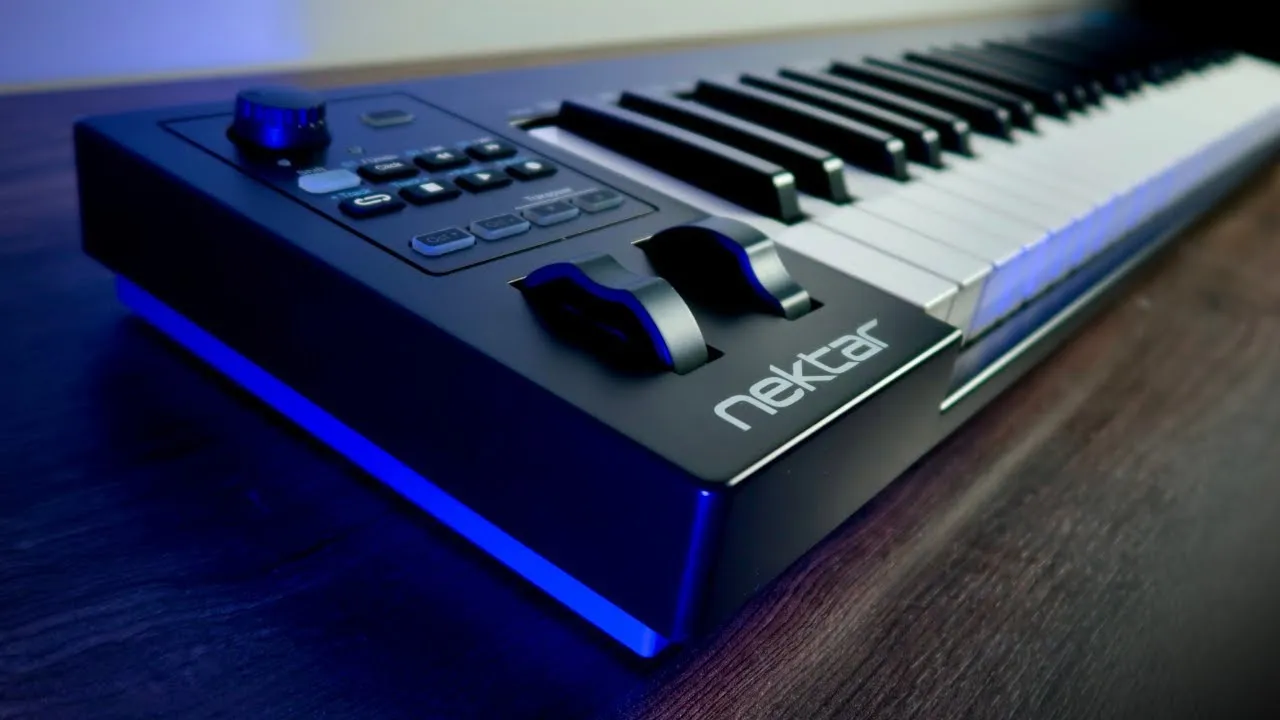
A keyboard can give you enough keys to play a part without giving you every control you want for shaping the sound. The Nektar Impact GX49 makes that trade-off clear: a straightforward keyboard with a small set of hands-on controls.
This article revisits the original Nerd Musician review, with specifications checked against Nektar’s documentation. It is an adaptation of that review, not a new hands-on test.
Watch the original review
What you get on the GX49
The GX49 has 49 full-size, velocity-sensitive keys, pitch-bend and modulation wheels, octave and transpose buttons, and one assignable knob. It is USB-powered and includes a quarter-inch TS footswitch input.
Nektar lists four velocity curves and three fixed-velocity settings. These change how playing dynamics are translated into MIDI velocity; they do not change the physical feel of the keys. See Nektar’s specifications.
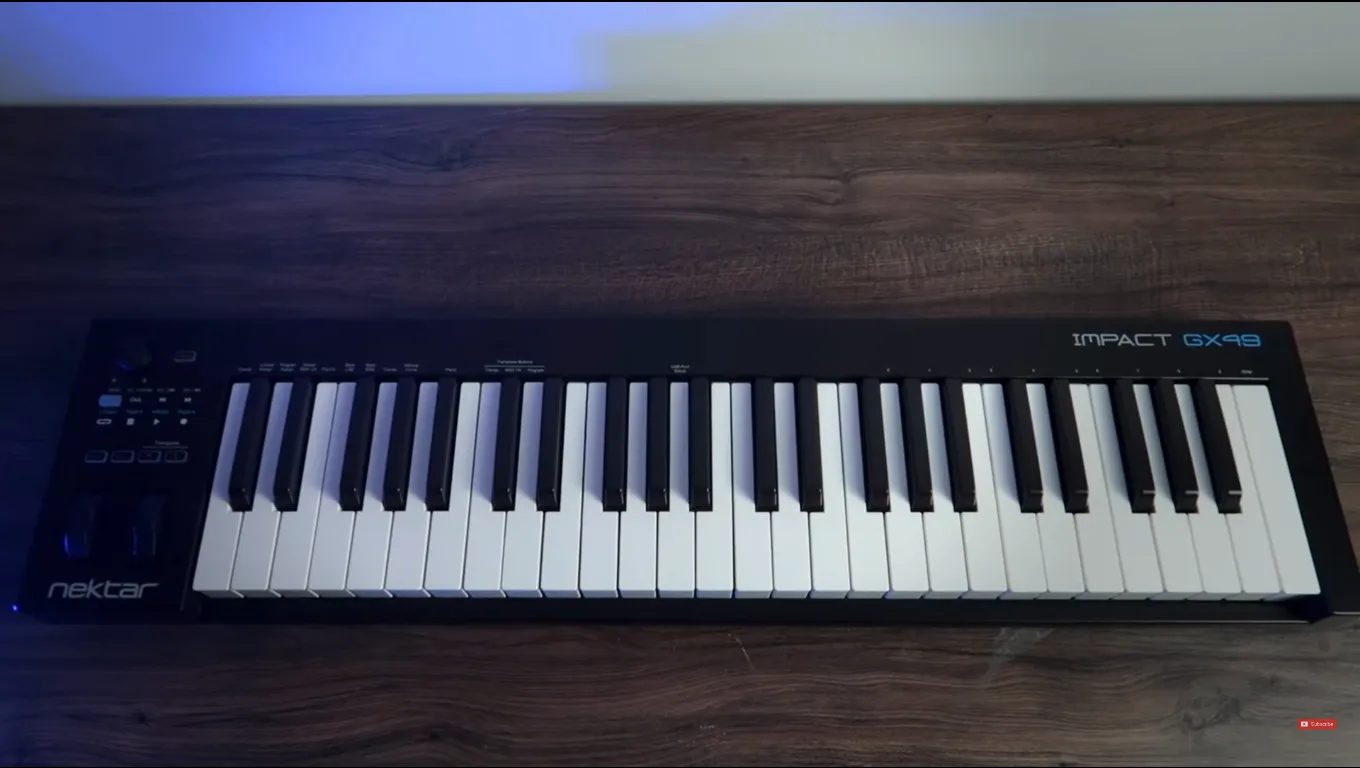
The controls occupy a small section beside the keys. Image from the original review.
A keyboard first, a control surface second
If your sessions begin with playing a melody or recording chords, this layout keeps the focus on the keys. You can reach the wheels and nearby controls without working around a large control panel.
The limitation is equally visible. One knob cannot give you separate, simultaneous access to several synth parameters. Reassigning a control may work for occasional adjustments; it becomes a different proposition when you want to perform several changes together.
That is the useful question to ask before choosing a controller: which actions do you want under your fingers at the same time? A keyboard-focused setup and a sound-design-focused setup may need different controls.
Getting started in Ableton Live
Playing notes and controlling Live’s interface are separate jobs. A keyboard can successfully trigger an instrument while its transport buttons still need configuration.
For a basic note-input setup:
- Connect the GX49 by USB and open Live’s MIDI settings. In current documentation, this is under Settings → Link, Tempo & MIDI.
- Find the keyboard’s input port and enable Track if it is not already enabled.
- Load an instrument onto a MIDI track. Select the appropriate input, then use Auto monitoring with the track armed, or In monitoring, to hear your playing.
These are general Live settings, not a GX49-specific integration script. Port names and the appearance of the settings window can vary. Ableton explains Track, Sync and Remote here.
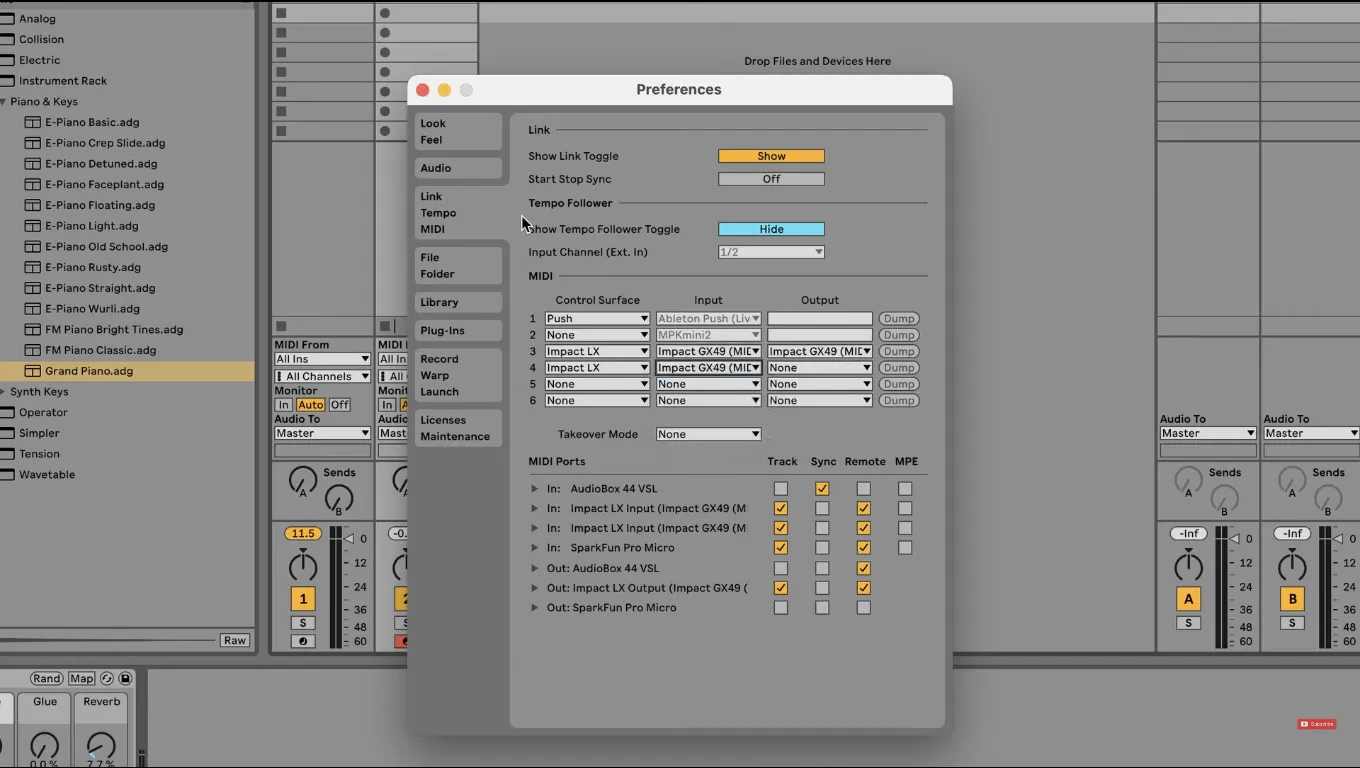
An older Live settings screen from the original review. Its selected control surfaces and switches are not a configuration preset to copy into every setup.
Mapping a control yourself
For manual assignments, enable Remote on the keyboard’s input port. Enter Live’s MIDI Map Mode, select a mappable parameter, move the knob or press the desired button, and leave mapping mode. Test the assignment before recording.
Start with something easy to hear, such as an instrument macro. Avoid assigning a key you still need for playing: Live’s manual notes that a key used for a remote assignment is no longer available as normal note input. Read Ableton’s MIDI mapping guide.
Transport controls need their own check
Nektar documents seven assignable transport buttons with a secondary layer, giving 14 programmable options. Supported DAW integration and manual MIDI assignments are different routes to using those controls. Check the relevant Nektar instructions for your software rather than assuming every transport function will work automatically. Nektar describes the control options here.
Who does this layout make sense for?
The GX49 is worth considering when your priority is a full-size keyboard with a restrained control section. The trade-off is less attractive if your workflow calls for a bank of dedicated knobs or faders.
That verdict is about the layout and workflow covered here. It does not establish current value for money, long-term reliability or performance in an untested software version. Check those questions separately before buying.
Build around the controls you actually use
The original review also explored a custom-controller approach. That is a useful way to think beyond the keyboard: write down the parameters you repeatedly reach for, then sketch the controls you would want beside your keys.
Perhaps your priority is several knobs for sound design; perhaps it is a small set of buttons for repeated actions. Let those needs guide the layout instead of starting with a long feature list.
Use the MIDI Controller Builder to start designing a controller around the way you make music.